Sharing and access
You see what your accounts and grants allow; sharing is an explicit grant, and admin rights do not open private data.
Every kind of thing in Meridian is shared the same way. Something you make starts private to you. You share it with people, with groups, with a Space, or with everyone in the workspace. Reading what someone shared with you never gives you their accounts. Being an admin lets you run the workspace; it does not open anyone's private mailbox, files, or chats.
Steps
- Share a document or a Database. Open it and choose Share. Pick groups, or grant everyone in the workspace. Documents, tables, and connected accounts are shared for use; editing stays with the owner.
- Share an agent or a skill. On the agent's Settings tab, under Access, Available to sets the audience and Shared with names people or groups with a role: use, or edit. Everyone who can use an agent can see who else can. Publishing to the whole workspace is an admin's call.
- Share through a Space. Add people or groups to a Space from Team → Add, as Member or Manager. Members read and contribute; managers also set goals, instructions, and membership. Documents and Drive folders added to the Space reach current and future members.
- Share an account. A connected account is yours. From its Manage sheet you can grant a group the use of what it imported. A Team account can be attached to an agent so the agent acts through it on its own.
- Check before you send. When an agent writes a recap or a report from private sources, it delivers to people who may see those sources. Ask "who can see this?" and it answers from the current grants.
Let people outside the workspace talk to an agent
An agent's Guest link lets anyone with the URL chat without an account, for example an interview respondent or a customer asking for support. Open the agent's Settings → Access, turn on Guest link, and choose Copy. New link replaces the URL; turning the switch off closes guest access. The agent's workspace audience stays separate.
You must be able to edit the agent and be its Accountable person or a workspace admin to manage the link. It needs an active agent and a current accountable person. It runs with the agent's configured skills, tools and attached accounts; guests answer questionnaires, while action approvals go to the accountable person.
Conversations appear under the agent's Logs. Set Conversations go to to a Space when its team should read them. Guest-link controls are on the agent page; chat can help configure the agent but cannot enable or retrieve its link.
What waits for your approval
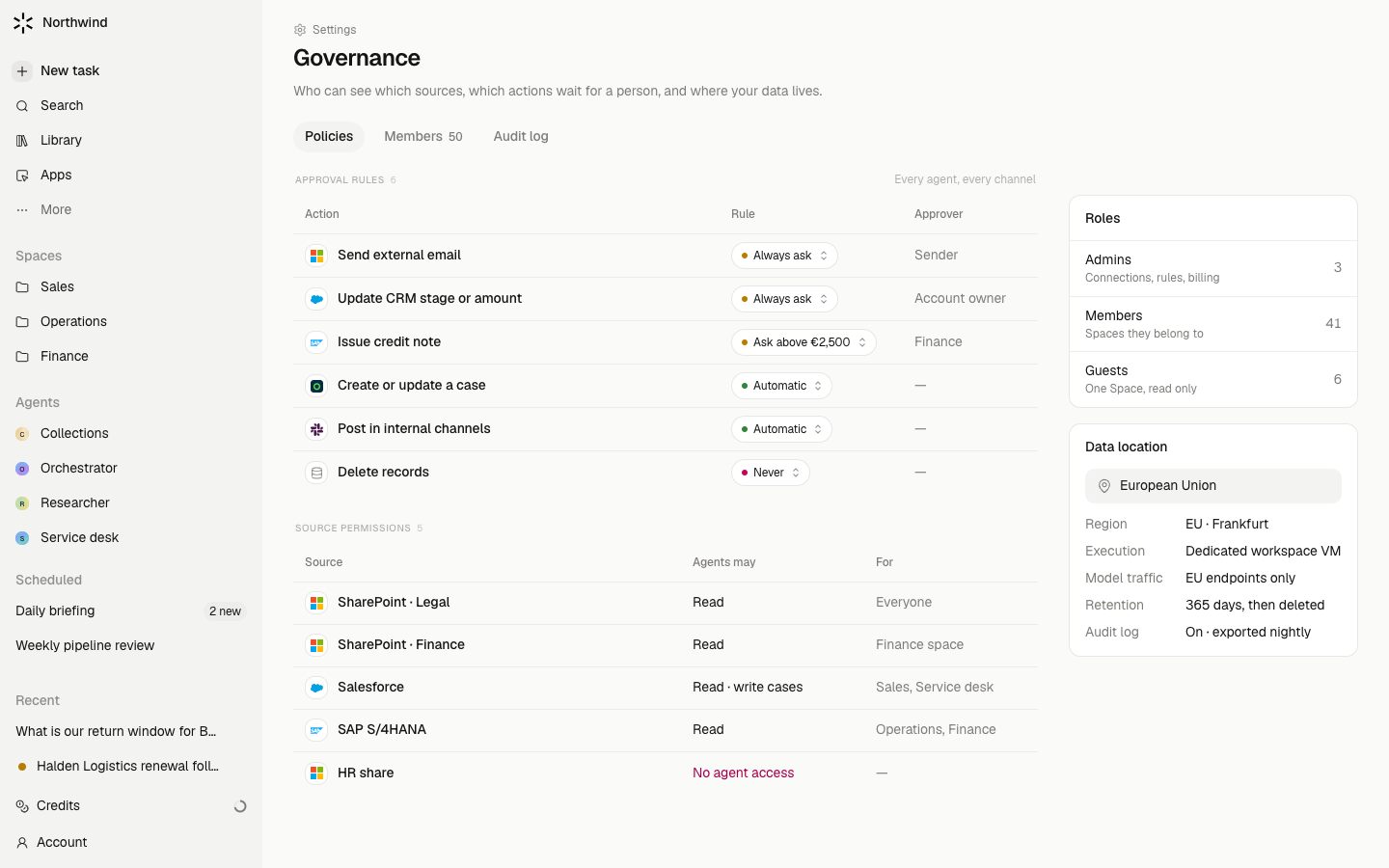
Sharing done by an agent, such as "share this report with Sales", asks on a card, because it widens who can reach the result. Your own clicks in a Share dialog are yours and do not. Removing someone's access and deleting ask or confirm.
Limits
- One person can be named on agents, skills, and Spaces. Documents, tables, and accounts are shared with groups only for now; use a group of one if you need it.
- An admin can manage the holders of a private document or account they cannot read. This is a known gap, recorded and planned.
- Sharing a Space shares its work, never members' personal accounts. A colleague's Gmail never acts in your shared chat.
- Public links exist for documents, apps, and agent guest conversations; opening one needs no sign-in, so share them deliberately.
- There is no audit log page yet. Each agent's Logs tab and each run's thread are the record.