Chat and approvals
Every request is a chat with a run inside; a card stops anything that sends, writes, or shares.
A chat is where you talk to an agent and where the agent shows its work. Each message you send starts a run. The run reads, searches, drafts, or builds, and its steps appear in the thread as it goes. When a step would change something outside the chat, it stops at an approval card and waits for you.
Steps
- Start a chat. Send from the composer on Today, in a Space, or on an agent's page. Chats open as threads and appear under Recent in the sidebar. Pin one to keep it under Pinned.
- Pick who answers. Meridian answers by default. Mention an agent in the composer, or start from an agent's page, to talk to that teammate instead. Agents can hand work to each other when a specialist fits.
- Watch the work. Tool steps show as compact rows you can expand. Files, tables, apps, and records the agent opens appear in the pane beside the chat. Close the pane to return to the thread.
- Decide on the card. An approval card names the action and shows exactly what will happen. For an email, the card is an editable draft with Send and Discard: change the text, recipients, or subject before sending. For other actions, approve or decline on the card. A declined action is recorded and the agent carries on.
- Come back to what is waiting. Anything parked on your decision is listed under Needs review in the sidebar, and in a Space under Waiting on you. Open it and the thread scrolls to the card.
What waits for your approval
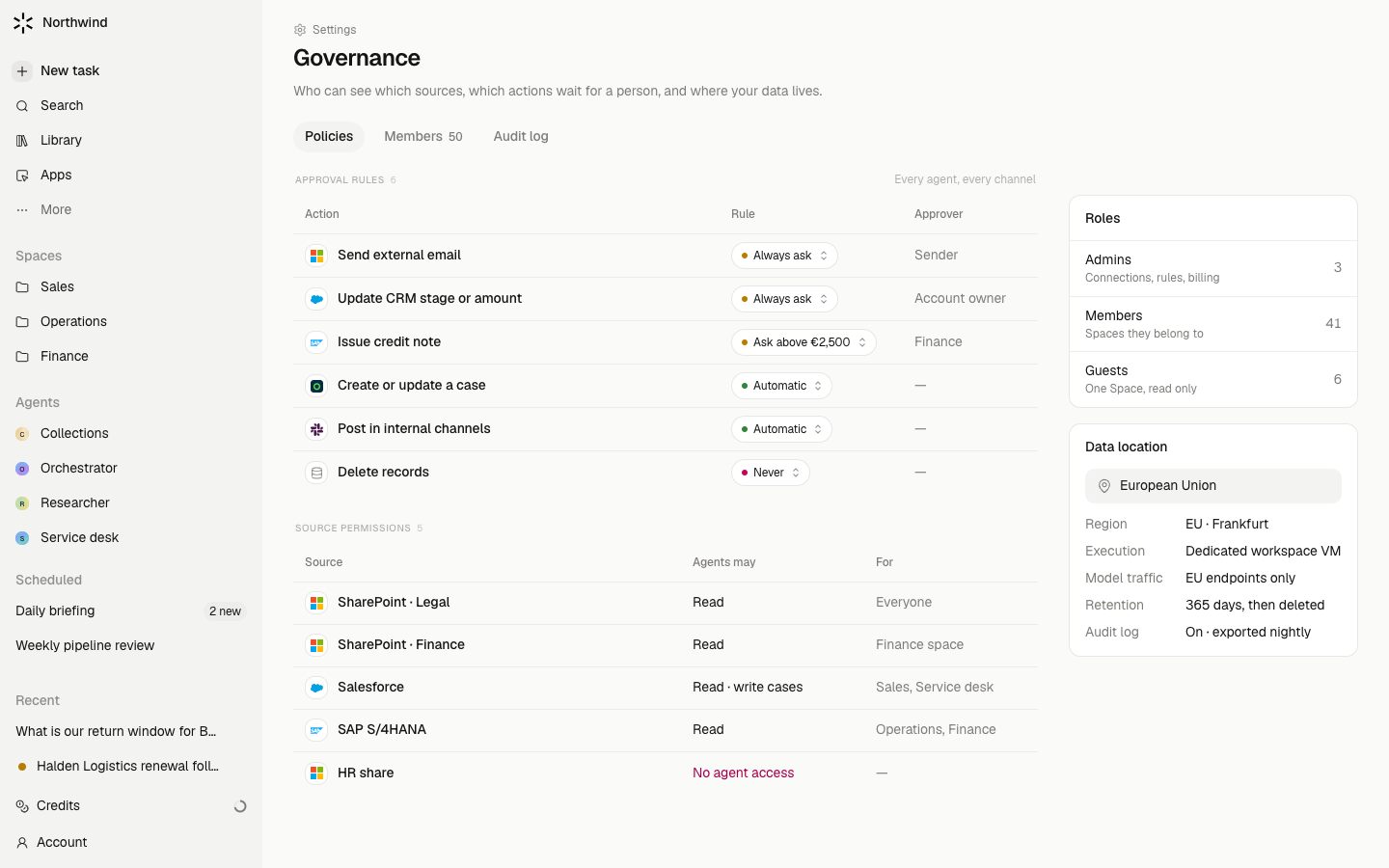
Sending email or messages, writing to a connected system such as HubSpot, changing a shared Database, sharing with more people, deleting, and turning an agent's jobs on through chat. On your own runs the card offers Always allow for you, which stops that one action from asking again for you alone. A manager cannot lift approvals on your account.
Limits
- Only the person the action is for can decide it. If a colleague's run is waiting, it is their card, not yours, even in a shared chat.
- A run that is waiting keeps waiting. It does not time out and act on its own.
- The pane beside the chat shows one thing at a time. Full screen and a floating chat are available from the pane toolbar; two panes side by side are not.
- Voice and video are not part of chat yet.